A new budget Android phone from Cherry Mobile is out!
The Cherry Mobile Hyper!
Hyper has this specs:
Display: 5.0"
Resolution: 800 x 480
Processor: Qualcomm Snapdragon S4 1.2Ghz
GPU: Adreno 203
Camera: Main is 5MP / Secondary is VGA
Battery: 2000mAh
IPS: (tbd
It's introductory price is 4,999.00 (6,499 less 1,500)
Showing posts with label Mobile Talk. Show all posts
Showing posts with label Mobile Talk. Show all posts
Saturday, April 13, 2013

Wednesday, August 10, 2011
Haipad M7m Videos
NOTE: videos posted here are not mine. I just found them in youtube. Credits go to their respective copyright owners/uploaders.
Latest Haipad M7-m Android Tablet Review
haipad m7m dungeon hunter hd
Angry Birds
I can't find a video playing "Angry Birds" in M7m. Though Haipad M7 is aesthetically different, it shares the same platform (S5PV210) as M7m, so the performance should be the same (or at least there shouldn't be much gap). So I'm sharing this video of Haipad M7 playing the popular Android game, the Angry Birds:
Other Games Being Played in S5PV210 Platform
Fruit Ninja:
Asphalt 6:
Guerilla Bob:
Latest Haipad M7-m Android Tablet Review
haipad m7m dungeon hunter hd
Angry Birds
I can't find a video playing "Angry Birds" in M7m. Though Haipad M7 is aesthetically different, it shares the same platform (S5PV210) as M7m, so the performance should be the same (or at least there shouldn't be much gap). So I'm sharing this video of Haipad M7 playing the popular Android game, the Angry Birds:
Other Games Being Played in S5PV210 Platform
Fruit Ninja:
Asphalt 6:
Guerilla Bob:
Sunday, August 7, 2011
Herotab M802 (Apad iMX515 8"): A Sudden Twist of Fate

We have this Herotab M802 tablet for a while. Just a while ago, I was trying to connect a USB cable at the back of my CPU... when I accidentally leaned on the panel of this tablet. Heard a soft 'tick'. I thought it was just the whole panel responding to the force created by my 'soft' lean... but, oh no! A crack ran across the whole screen from top bottom!
It is kaput!!!
The crack appeared at about 1/3 of the screen from right (side where 'Back' button is) to left. Upon testing, that 1/3 portion responds to touch, but the remaining 2/3 doesn't!
Now, I need a bricked unit... and salvage the working touchpanel. Meantime, this tablet will be in its cage...
Saturday, August 6, 2011
The CD-R King Tablet PC: Fastpad
 Yep, that's the new tablet PC being offered by CD-R King: The CD-R King Faspad!
Faspad is based on the S5PV210 SoC platform offered by Samsung, which is powered by a 1GHz Cortex-A8 ARM processor, PowerVR SGX540 graphics processor and 512MiB of RAM. It also got a capacitive screen, the same type of touchscreen technology used in iPhone, iPad, iTouch, Galaxy Tab.
We all know that CD-R King products are *mostly* re-badged items from China. They get items from these Chinese OEMs, and so after conducting a few Google searches... bingo! FastPad is the same as Haipad M7-M! Specs and physical aspects: Curved back, I/O ports placement, speaker position and even its face. No doubt, CD-R King Fastpad is a re-badged Haipad M7-M!
CD-R King FastPad is currently priced at Php8,800.00, cheaper than Haipad M7-M's quoted prices at AliExpress.com (which are priced USD200 on the average including shipping fees). FastPad's lower price could be attributed to the absence of Bluetooth (unless they forgot to include this in the specs) and the lower internal storage capacity (4GB vs. 8GB). That means, Fastpad is trimmed (feature) Haipad M7-M.
It is listed to have Android 2.2 (Froyo) but Haipad already released an Android 2.3 (Gingerbread) firmware for their M7-M. I just don't know if it would be compatible with Fastpad, considering that M7-M has larger internal storage capacity (as mentioned above).
Links to Haipad M7-M
- Haipad M7-M (official product page)
- AliExpress links: link1 link2 link3 link4
I don't have first-hand experience with Fastpad, but knowing that it has the same platform as Haipad M7 (aka Herotab C8, Dropad A8) which my hands were able to get hold of, it should be a good tablet.
The 3 months warranty could be a deal breaker but I would always consider this than buying online.
Just my thoughts....
My LG Optimus One: a farewell...
I had to let go of my LG Optimus One. The promised Gingerbread update wouldn't show and the "dust under screen" issue has become annoying to me.
So I had to sell it for Php7,500.00 (original price was around Php13,000).
Tschuss my LG Optimus One!
So I had to sell it for Php7,500.00 (original price was around Php13,000).
Tschuss my LG Optimus One!
Sunday, January 2, 2011
My First Android Phone - LG Optimus One
Ok, after some canvassing about what would fit in my budget, I decided getting an entry-level Android smartphone from LG - the LG Optimus One or P500.
I decided to pick Optimus One over other phones at the same price range for the following:

Time for some tinkering...
I decided to pick Optimus One over other phones at the same price range for the following:
- Android 2.2 - Froyo
- 512mb RAM
- Looks neat and simple
- Wanna try LG (yep my first LG mobile phone)
- LG P500 Unit with battery (1500mAh as labeled)
- Headset
- Wall charger with micro-USB cable
- User Guide
- 2GB Samsung TransFlash/MicroSD

Time for some tinkering...
Sunday, April 27, 2008
Phone as Modem without PC Suite / MPT
Sometimes, I find it irritating to run a software just to connect to internet using my 3G phone. Aside from being a memory hogger, accidentally exiting PC Suite or MPT disconnects you from the internet. PC Suite or MPT (or other companion software for your phone) has its purpose. Synchronization, address book, media uploading and downloading, etc. Installing the massive software to use as DUN dialer alone is simply an overkill.
I got the idea when I did the article about connecting to the Internet using SE P990i in Linux. We could assume that this article concerns Microsoft Windows environment as PC Suite and MPT run only in Windows.
Ok, so what do we need?

The same initialization string could also be used on HSDPA USB modems, as well as Bluetooth modem (BT as modem). I've tested it and works with Huawei E220. Bottom line, the approach is to install the correct cable/modem driver for your phone. Enter the modem initialization string accordingly and you're OK. No need to install dedicated dialer software for your phone. If you have a 3G/UMTS/HSDPA phone, I suggest that you set it in 3G/UMTS/HSDPA only mode, that's for a faster connection.
Good luck!
I got the idea when I did the article about connecting to the Internet using SE P990i in Linux. We could assume that this article concerns Microsoft Windows environment as PC Suite and MPT run only in Windows.
Ok, so what do we need?
- Cable driver for your phone (modem driver)
- Your provider's valid Access Point Name (or APN) to access the net
- Administrator account/access (in the target computer)
Modem Drivers
- For Motorola Phones - Motorola Handset USB Driver (registration required). Alternatively, you can also use "P2k Driver" (do a google, download)
- For Nokia Phones - Nokia Connectivity Cable Driver (download the one that suits your type of cable)
- For Sony Ericsson Phones - As far as I can tell, there's no unified driver from SE. You have to download the specific driver for your phone. There's no installable driver-only package for SmartPhones from SE either. You have to download (and install) SEUS or PC Suite for SmartPhones to get the driver. Try to search (google). A repackaged driver-only installer could be around.
- For other phones, see your phone's manual or online documentation.
Access Point Name (APN)
- For Smart subscribers, for anything that concerns internet access - it's "internet". Regardless of subscriber type (post or prepaid). As simple as that.
- For Globe, I heard they have different APN for different types of subscription or service to be accessed, which makes things complicated. Imagine if you're using at least two SIMs in one phone. One postpaid and one prepaid. You can't just use any of them to access the internet without going to your phone settings and change accordingly.
- For other providers, call CSR.
The Steps
- Install your phone's cable/modem driver.
- Connect your phone. Wait until the phone is properly detected and drivers are installed. Your phone needs to be properly detected and installed before proceeding to the steps below.
- In your Desktop, right-click "My Computer" then "Manage"
- From the left-portion of the "Computer Management" window, click "Device Manager"
- Locate "Modems" in the device-tree, and expand it.
- Select your phone's modem interface. Right-click on it, and select "Properties".
- In the device properties, select the "Advanced" tab.
- In the "Extra initialization commands" box, enter (as shown in the image):
- AT+CGDCONT=1,"IP","[your_apn]"
- Smart users: AT+CGDCONT=1,"IP","internet"
- Some Globe users: AT+CGDCONT=1,"IP","http.globe.com.ph"

- Click OK.
- Create Dial-up connection and use that modem (dial-up# is *99***1#)
- Connect
The same initialization string could also be used on HSDPA USB modems, as well as Bluetooth modem (BT as modem). I've tested it and works with Huawei E220. Bottom line, the approach is to install the correct cable/modem driver for your phone. Enter the modem initialization string accordingly and you're OK. No need to install dedicated dialer software for your phone. If you have a 3G/UMTS/HSDPA phone, I suggest that you set it in 3G/UMTS/HSDPA only mode, that's for a faster connection.
Good luck!
Tuesday, October 16, 2007
My SE P990i Issues (Part III)
Today, I was on a meeting and this meeting got boring. I feel sleepy and decided to play game (Hex-A-Pop) on my P990i, so I pulled it out of my pocket. I noticed that the Dialer is open. I clearly remember that when I locked it (I mean the keys), it was on the stanby screen. Strange! Could it be triggered by the spacebar? Keys were locked, so it shouldn't be. But then I tested it and I was right. Holding the spacebar, even the keys are locked launches the Dialer.
Out of this, I discovered another strange thing:
Launch the camera. Lock the keys. Press any key, and it would show the usual message when keys are locked. Hold the spacebar. Dialer will launch even if the keys are locked, and it's now unlocked!
Strange...
Out of this, I discovered another strange thing:
Launch the camera. Lock the keys. Press any key, and it would show the usual message when keys are locked. Hold the spacebar. Dialer will launch even if the keys are locked, and it's now unlocked!
Strange...
Thursday, October 11, 2007
My SE P990i Issues (Part II)
Just tonight, as I was on my way home, traffic caught us in the middle of South Super Highway, going to Alabang. I pulled out my P990i and started browsing using Smart 3G.
Using my P990i, I checked my blog (this blog) and I found few misspelled items so I decided to edit it. In my laptop, it has become a habit for me to copy first what I'm editing so that when things accidentally messed up, I could just clear everything, and get the original from the clipboard. And so I did with one of the articles here. For some reason, I accidentally messed the article I was editing, so I cleared the content, and decided to paste from the clipboard... and so surprised that it only pasted a small portion of what I copied earlier! I investigated it and found out that:
Using my P990i, I checked my blog (this blog) and I found few misspelled items so I decided to edit it. In my laptop, it has become a habit for me to copy first what I'm editing so that when things accidentally messed up, I could just clear everything, and get the original from the clipboard. And so I did with one of the articles here. For some reason, I accidentally messed the article I was editing, so I cleared the content, and decided to paste from the clipboard... and so surprised that it only pasted a small portion of what I copied earlier! I investigated it and found out that:
- You can paste up to 255 characters only in a text are in the web browser. If you copy more than that, only the first 255 characters will be pasted.
- Also in the web browser, when typing in a text box and 255 characters is reached, the keyboard will work intermittently, replacing only the character located in the left of the cursor. Switching to ‘123’ mode completely disables typing!
- Still in web browser, ENTER/RETURN doesn't work in on-screen keyboard even if the target is a multi-line text box (textarea).
- Text options like copy, cut, paste, etc. is missing in the on-screen keyboard when invoked from web browser (also true in message editor).
Wednesday, October 10, 2007
My SE P990i Issues
As I use my P990i, I notice more and more issues everyday...
These items are based on R6E28 firmware.
Camera (Flip-Open mode)
Media Player
Sound
These items are based on R6E28 firmware.
Camera (Flip-Open mode)
- You can only access the "Settings" via stylus.
- You can only adjust the "Zoom" via stylus.
- You can only adjust the "Exposure" via stylus.
- In preview mode, pressing OK (or Return) key is rather confusing because it asks you if you are sure to delete the image (I thought this would happen if you press the "DEL" key).
Media Player
- No assigned keys to navigate (back/forth) between presets in Radio Player.
- No assigned keys to adjust (up/down) frequencies in Radio Player.
- No custom Equalizer (limited to factory presets).
- No way to specify folder for music (ring/msgtones will also be included when you search and there's no way to excluded them).
- No way to re-order items in the play list.
- No non-stop option (you cannot enjoy compilations meant to be played non-stop).
- Supports mp4 but previous MPEG versions are left-out.
- Doesn't support WMA tags.
- BUG: Create a playlist. Name if like “Myown Playlist”. From Play lists, highlight the newly created play list and put a period (.) between “Myown” and “Playlist” resulting to “Myown.Playlist”. Save. Now, only “Myown” is there.
Sound
- Music – low.
- Speaker phone – low.
- Ear-piece – low.
- Voice-command – way too low (you would hear nothing, unless you’re on a wired headset).
- Headset – your voice will always echo during call.
- Homepage/default page cannot be changed.
- Enter/OK key has no effect in links (i.e. you cannot open a link using the enter key). You have to use stylus or the jog-dial.
- No shortcuts (increase/decrease font only).
- You cannot use the arrow keys (down, up, left, right) to navigate between cells in Quicksheet.
- It doesn’t use system-defined date separator.
- You have to open the SMS before you can reply (flip-open mode).
- You cannot reply in MMS format (flip-open mode).
- Be careful when marking messages from the inbox. Make sure to tap only on the checkbox area. If you accidentally tap the subject, the message will be opened; clearing all marked messages and so need to mark them again.
- Incoming email protocol (POP/IMAP) of existing email accounts cannot be changed without loosing existing emails.
- Downloading of email is limited to PHONE’s free disk space (60mb or less), as you cannot switch the message storage between phone and Memory Stick.
- There's no way to switch between Phone and Video Phone via keyboard or jog-dial. Stylus is required!
- It’s hard to dial 8-MCDO.
- No way to add SOS numbers.
- Speed-dial (via keyboard) doesn’t work. Works only for “1” which is the voicemail shortcut (not tested when flip is on).
- When a contact is set as speed dial entry, only the first name is set to be the name tag. You have to type the last name if you wish for it to have the complete name.
- While in the Dialer, pressing Speed dial or Contact button, then “Back” button takes you back to the Dialer. But…. pressing call log button, then “Back” button takes you directly to main menu. While in Speed Contacts window, pressing Contact or Call log buttons, then “Back” button takes you back to Speed Contacts. But… pressing Dialer button, then “Back” button goes directly to main menu. This is how “Back” button works.
- “Master Reset” deletes factory installed themes (and games if “Delete all user installed applications.” checkbox is checked. Those are factory installed rather than user installed.
- There’s no way to re-arrange icons. If you want the Dialer to be the first in the list, you cannot do it.
- No icon customization (some hacks were partially successful).
- No Flash support, so you cannot enjoy Flash-enabled websites and Flash-videos (i.e. youtube).
- Enter/OK key has no effect in Task manager (i.e. cannot be used to switch to selected task).
- Tapping on empty area switches to selected program in Task manager.
- Standby screen doesn’t display Today’s Task, Appointments, no. of unread messages, no. of unread emails.
- No communications log.
- You are given options to edit folders in “Main menu” even you cannot actually edit it.
- File manager doesn’t allow changing the extension of any file!
- If you accidentally tapped a HTML file from the File manager, and you accidentally chose “Save”, it will be copied to “c:\web”, and a bookmark will be added to web browser. But even if you delete this bookmark, the actual HTML file will stay in “c:\web” and there’s no way you can delete it because this folder is hidden from the File manager. You would have to use third-party File manager (i.e. Swiss Mgr Pro) to delete this.
- Be careful when picking up contact via stylus as running your stylus from “right to left” invokes contact deletion.
- Doesn’t support video tone.
Tuesday, October 9, 2007
Recover P990i Phone Lock Code
Forgot your P990i's Phone Lock Code?
Here's how to retrieve it...
Requirements:

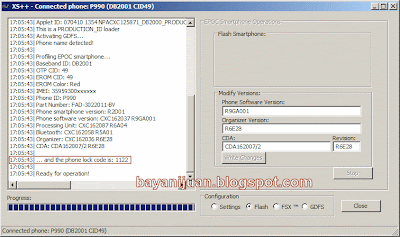
Here's how to retrieve it...
Requirements:
- Your phone and DCU-60 cable
- XS++ 2.x
- Turn-off your phone (remove and reinsert battery to make sure it is completely turned OFF).
- Launch XS++.
- Enable (put check) on "Smartphone connect" (see image below).
- Click "Connect" (see image below).
- XS++ will spit some instructions, follow it (hold 'C' from keypad or keyboard).
- Wait...
- XS++ will spit some text (phone info, etc., INCLUDING YOUR PHONE LOCK CODE as shown in the image below).
- DONE!


As Easy As That...
Monday, September 17, 2007
P990i: No Internet Accounts Error
Just a day ago, out of nowhere, an error appeared on my P990i every time I initiated internet connection on the phone. The error says:
I tried creating new account, so that the configuration will be updated. Tried to connect/browse again, same message.
Modified and updated existing internet account. Tried to browse again... same message.
I couldn't fix it by the said steps, so I was to "Master Reset" the phone. I was about to back-up via SE PC Suite but my P990i couldn't be detected by the software! Mmmm... related? I don't know. So I went on and master-reset my phone. After which, the "No internet accounts..." error is solved and PC Suite was able to detect the phone!
What could have happened?
Here's the video of what I'm talking about:
No internet accounts have been setup. Setup an account in Control Panel.BUT THIS IS NOT TRUE, since I have several internet accounts configured on my phone!
I tried creating new account, so that the configuration will be updated. Tried to connect/browse again, same message.
Modified and updated existing internet account. Tried to browse again... same message.
I couldn't fix it by the said steps, so I was to "Master Reset" the phone. I was about to back-up via SE PC Suite but my P990i couldn't be detected by the software! Mmmm... related? I don't know. So I went on and master-reset my phone. After which, the "No internet accounts..." error is solved and PC Suite was able to detect the phone!
What could have happened?
Here's the video of what I'm talking about:
Sunday, September 16, 2007
Sony Ericsson P990i's Camera
Today, I took pictures around using my Sony Ericsson P990i's camera and Canon IXUS i Zoom (SD30). As I was taking pictures using P990i, I noticed some things. By the way, I haven't notice these things before, because I used to take pictures in flip-closed mode. These things have assigned keys when in flip-closed mode:
P990i

Canon IXUS i Zoom

I also took picture (not posted here) using Nokia 6630's camera but it made me even more confused because at a dimension of 1280x960 pixels, it has a vert./horz. resolution of 300 dpi!!! Why is that so? I don't know! As I've told earlier, I am not a photographer.
Again, here are the pictures (Left=P990i; Right=IXUS i Zoom):


- You can only access the "Settings" via stylus.
- You can only adjust the "Zoom" via stylus.
- You can only ajust the "Exposure" via stylus.
- In preview mode, pressing OK (or Return) key is rather confusing because it asks you if you are sure to delete the image (I thought this would happen if you press the "DEL" key).
P990i
- Width = 1600 pixels
- Height = 1200 pixels
- Horz. Res. = 72 dpi
- Vert. Res. = 72 dpi

Canon IXUS i Zoom
- Width = 1600 pixels
- Height = 1200 pixels
- Horz. Res. = 180 dpi
- Vert. Res. = 180 dpi

I also took picture (not posted here) using Nokia 6630's camera but it made me even more confused because at a dimension of 1280x960 pixels, it has a vert./horz. resolution of 300 dpi!!! Why is that so? I don't know! As I've told earlier, I am not a photographer.
Again, here are the pictures (Left=P990i; Right=IXUS i Zoom):


So... what can you say?
Thursday, September 13, 2007
The Huawei E220 HSDPA USB Modem
My hands were able to get hold of this Huawei E220 HSDPA USB modem. This is distributed by Globe Telecom (I think it is bundled with Globe Visibility package, which was requested by one of my officemates for off-site support).
When I saw it, I got curious, borrowed it and tested it myself...
This USB modem is also equipped with a USB drive. It contains Software and driver for Windows.
Here are some pictures of the hardware:


The HUAWEI Mobile Connect software is surely enough to properly connect to your service provider under Windows environment. It has options to set APN, IP Address, etc. It also has the option to force 3G connection only.

Globe Connection


Smart Connection
I tried inserting my Smart Buddy SIM and it worked.


In Linux Environment (using Linux Mint - Cassandra)
It didn't work right away, but after a short research, I was able to connect thru SMART.
When I saw it, I got curious, borrowed it and tested it myself...
This USB modem is also equipped with a USB drive. It contains Software and driver for Windows.
Here are some pictures of the hardware:


The HUAWEI Mobile Connect software is surely enough to properly connect to your service provider under Windows environment. It has options to set APN, IP Address, etc. It also has the option to force 3G connection only.

Globe Connection


Smart Connection
I tried inserting my Smart Buddy SIM and it worked.


In Linux Environment (using Linux Mint - Cassandra)
It didn't work right away, but after a short research, I was able to connect thru SMART.


Thursday, September 6, 2007
HOWTO: Connect to the Internet using SE P990i in Linux
I am using Linux at home (whenever possible). I can use P990i to connect to the Internet in Windows environment since this phone comes with driver/software for this OS. But what about in Linux? Here's how to do it...
Assumptions
This article assumes that GPRS/3G service is already activated in your SIM.
This article also assumes that you are familiar with Linux (esp. Debian Linux variants with GNOME desktop).
Requirements
SE P990i Unit (with SIM, indeed!)
DCU-60 Cable (bundled with P990i)
Linux (a Debian variant with GNOME Desktop)
Steps
Step 1
Step 2

Step 3


Step 4

By the way, I am using Linux Mint (Cassandra) which is an Ubuntu derivative as far as I can tell. Ubuntu is Debian Linux variant.
Assumptions
This article assumes that GPRS/3G service is already activated in your SIM.
This article also assumes that you are familiar with Linux (esp. Debian Linux variants with GNOME desktop).
Requirements
SE P990i Unit (with SIM, indeed!)
DCU-60 Cable (bundled with P990i)
Linux (a Debian variant with GNOME Desktop)
Steps
- Install WvDial and GNOME PPP.
- Connect your phone.
- Configure connection.
- Connect.
Step 1
- Install WvDial (if not yet installed)
-$ sudo apt-get install wvdial
- Install GNOME PPP (if not yet installed)
-$ sudo apt-get install gnome-ppp
Step 2
- Connect your P990i to PC (via DCU-60 cable).
- When you connect your phone, 3 USB ACM (Abstract Control Model) devices should be registered (as shown below via "dmesg").

Step 3
- Launch GNOME PPP.

- Press "Setup".
- Under "Modem" tab, click "Detect" button.

- If it's not automatically detected (via "Detect") button, you can try putting the device manually (/dev/ttyACM1 in my case).
- Click "Phone numbers..." button, then enter *99***1# in the first line, and "Close" it.

- Click "Init strings..." button, then enter AT+CGDCONT=1,"IP","internet" in init 3, and "Close" it. This modem initialization strings are Smart Gold/Buddy specific. Replace "internet" with your provider's designated APN (i.e. internet.globe.com.ph (not sure) for Globe subscribers).

- You might also want to set optional settings in the "Options" tab (as shown below).

- "Quit" GNOME PPP.
Step 4
- Launch GNOME PPP.
- Enter anything in "Username" and "Password" (I used "test" for both).
- Select the phone number or enter *99***1#.
- Click "Connect".

When connected:


By the way, I am using Linux Mint (Cassandra) which is an Ubuntu derivative as far as I can tell. Ubuntu is Debian Linux variant.
Wednesday, September 5, 2007
P990i and Magnet
I bought a soft leather case for my P990i. Its brand is Capdase and cost me almost Php1,000.00. Bought in one of the stores in Festival Mall in Alabang. This leather case is equipped with magnet, which serves as its lock mechanism.
After a few days, I noticed that when physically in flip-closed (FC) mode and this magnet touches the keypad or the right side of the phone, the display switches as in flip-opened (FO) mode.
And when physically in FO mode, and this magnet touches the keyboard or right side of the phone, the display switches as if the phone were in FC mode.
Question now is, what are the possible side-effects of this?
I captured its video to further elaborate what I meant:
After a few days, I noticed that when physically in flip-closed (FC) mode and this magnet touches the keypad or the right side of the phone, the display switches as in flip-opened (FO) mode.
And when physically in FO mode, and this magnet touches the keyboard or right side of the phone, the display switches as if the phone were in FC mode.
Question now is, what are the possible side-effects of this?
I captured its video to further elaborate what I meant:
Saturday, July 14, 2007
P990i Internet Browsing via Bluetooth (with BlueSoleil)
I know my P990i's Bluetooth works when exchanging objects from another phone. But I have not tried its networking capability. Would it work? I have a generic bluetooth with IVT BlueSoleil software bundled with it. So on my laptop, I installed, configured and paired with my phone. I setup its PAN (Personal Area Networking), shared intenet connection (thru Windows XP's ICS) and tried. It worked! I can browse the net thru bluetooth.
What did I do? Read on...
Pair (or trust) each others' Bluetooth.
XP: Take note of PAN connection. I named mine as "Bluetooth PAN" to easily distinguish it.

XP: Enable Internet Connection Sharing in the connection (dial-up, LAN, WiFi) which is used for the Internet (right-click connection->Properties->Advance tab). Enable/check "Allow other network users to connect through this computer's internet connection". Select "Bluetooth PAN" as "Home networking connection". Note that if "Home networking connection" is not available, it means that you have just one prospective "Home networking connection" and it is automatically selected.

XP: Double check PAN connection. It should have 192.168.0.1 as its IP Address (this static IP is automatically set when internet connection is shared with PAN connection).

XP: Restart ICS service (in Windows XP services).
Run BlueSoleil software.
BlueSoleil: My Services->Properties->Personal Area Networking tab. Check/enable "Auto-start this service when My Bluetooth starts". Select "Set up Bluetooth Personal Area Network". Disable (uncheck) "Enable DHCP Server", as this will be handled by ICS.

BlueSoleil: Restart.
BlueSoleil: Check if it says that PAN is with 192.168.0.1, as shown below. Otherwise, repeat the process.

P990i: Go to Control Panel->Connections->Internet accounts.
P990i: Tap Internet accounts->New account->Bluetooth Internet (PAN)
P990i: Settings - Name it as you like (I named mine as BT Net), as shown below:

P990i: Devices - (Search and) select you computer's Bluetooth.
P990i: Tap BT Internet (PAN)->Roles and select "Client - Server"

P990i: Save and add it to your "Internet" group.
P990i: Optionally, you can remove other accounts from "Internet" group leaving only the newly created BT connection (BT Net) as it's member, as shown below. This is to ensure that when your phone tries to connect to the internet, your phone will not resort into using other possible connection. You can re-add other accounts again later, if you want (i.e. when want to use 3G or WiFi connection).

P990i: Save group.
XP: If not yet connected, connect to the internet.
P990i: Launch browser and try to surf the web.
Your phone should connect to your computer via bluetooth, acquire an IP address and establish a working network connection. You would see BlueSoleil spitting out a message that a remote device has connected to my Personal Aread Networking.

That's all.
What did I do? Read on...
Pair (or trust) each others' Bluetooth.
XP: Take note of PAN connection. I named mine as "Bluetooth PAN" to easily distinguish it.

XP: Enable Internet Connection Sharing in the connection (dial-up, LAN, WiFi) which is used for the Internet (right-click connection->Properties->Advance tab). Enable/check "Allow other network users to connect through this computer's internet connection". Select "Bluetooth PAN" as "Home networking connection". Note that if "Home networking connection" is not available, it means that you have just one prospective "Home networking connection" and it is automatically selected.

XP: Double check PAN connection. It should have 192.168.0.1 as its IP Address (this static IP is automatically set when internet connection is shared with PAN connection).

XP: Restart ICS service (in Windows XP services).
Run BlueSoleil software.
BlueSoleil: My Services->Properties->Personal Area Networking tab. Check/enable "Auto-start this service when My Bluetooth starts". Select "Set up Bluetooth Personal Area Network". Disable (uncheck) "Enable DHCP Server", as this will be handled by ICS.

BlueSoleil: Restart.
BlueSoleil: Check if it says that PAN is with 192.168.0.1, as shown below. Otherwise, repeat the process.

P990i: Go to Control Panel->Connections->Internet accounts.
P990i: Tap Internet accounts->New account->Bluetooth Internet (PAN)
P990i: Settings - Name it as you like (I named mine as BT Net), as shown below:

P990i: Devices - (Search and) select you computer's Bluetooth.
P990i: Tap BT Internet (PAN)->Roles and select "Client - Server"

P990i: Save and add it to your "Internet" group.
P990i: Optionally, you can remove other accounts from "Internet" group leaving only the newly created BT connection (BT Net) as it's member, as shown below. This is to ensure that when your phone tries to connect to the internet, your phone will not resort into using other possible connection. You can re-add other accounts again later, if you want (i.e. when want to use 3G or WiFi connection).

XP: If not yet connected, connect to the internet.
P990i: Launch browser and try to surf the web.
Your phone should connect to your computer via bluetooth, acquire an IP address and establish a working network connection. You would see BlueSoleil spitting out a message that a remote device has connected to my Personal Aread Networking.

That's all.
RANT: Sony Ericsson P990i
RANT ON!
I contacted Sony Ericsson because I am receiving error which says:
So this P990i - a smartphone, business phone, cannot store my business related emails all the time.
I wonder if Sony Ericsson's new smartphone, the P1/P1 has this capability. But if it isn't capable, it wouldn't be capable of downloading larger emails as well. I could be wrong though...
My suggestion is research a lot, before buying any product. Don't be afraid, ask the salesrep questions you have in mind. Search the net...
RANT OFF!
I contacted Sony Ericsson because I am receiving error which says:
The operation you have selected requires more storage space than is available. Free some space, for example by deleting files, and try againThat is when downloading emails with large attachments (emails that are larger in size than the internal memory's free space). And so I was given #71213775 as the case number. After several days, I got the following reply:
Dear Mr. [customer],OK! I've got a response from SE that it's impossible for P990i to store emails in Memory Stick. And so, I cannot use this phone to download emails with large attachments as it would choke the phones internal memory. Unless of course I would buy a third party email client for UIQ3 Platform, which has the capability to use the Memory Stick as its storage.
Thank you for contacting Sony Ericsson on the World Wide Web.
Answer:
Unfortunately, it is not possible to save messages on memory stick.
Best regards,
Sony Ericsson Call Center Philippines
If we can be of further assistance, please email to us at questions.ph@support.sonyericsson.com
For latest news and further product information, kindly visit our website at www.sonyericsson.com or text SE HELP to 2960 (P2.50 per text)
So this P990i - a smartphone, business phone, cannot store my business related emails all the time.
I wonder if Sony Ericsson's new smartphone, the P1/P1 has this capability. But if it isn't capable, it wouldn't be capable of downloading larger emails as well. I could be wrong though...
My suggestion is research a lot, before buying any product. Don't be afraid, ask the salesrep questions you have in mind. Search the net...
RANT OFF!
Tuesday, July 10, 2007
Sony Ericsson P990i Debranding Adventure: the steps

In connection with the previous article, I've written down the steps I've made for documenation purposes. So that I wouldn't "decrypt" the whole thing again, just in case a redo should be made.
Piece of advice if you want to do the same thing - be careful, and be very careful. One mistake could render your precious P990 unusable. I am not sure but doing this could also void your warranty! Don't do it if your phone is SP locked, as I've read that locked P990 wouldn't accept any SIM card after the debrand.
The process requires replacing two specific files in a folder named blob_fs which is located in SEUS installation folder.
System Requirements
- XVI32 Hex Editor
- Sony Ericsson Update Service software (version 2.7.4)
- DCU-60 USB Cable
- Guts (lots of it!) and other softwares
- 1. Install SEUS, back-up phone data and fully-charge phone
- 2. Update (or force update) P990 firmware to its latest (1st update)
- 3. Download and extract P990_R9F011_CDA1_World_Generic_1.rar from here
- 4. Determine the files to be replaced in blob_fs folder
- 5. Rename two files from downloaded archive (step #3)
- 6. Replace two files in blob_fs folder with files contained in the extracted archive (step #3)
- 7. Force update P990 firmware (2nd update)
- 8. Finally, force update P990 firmware again (3rd update, now for the new firmware)
Two files are needed to be replaced in the blob_fs folder. But the names and size of these files differ from one firmware to the other. The first file is about 350+ bytes in size, and the second one is about 420+ bytes. To know the exact size, from Windows Explorer, right-click on the file, then "Properties". Under general tab, look at the label "Size:" (not "Size on disk"). Sorting files "by size" in ascending order helps.
The First File
As stated, the first file is about 350+ bytes, so in blob_fs folder, look for a file which is greater or equal to 350 bytes, but less than 400 bytes. The name of this file should be something like this:
FILE_NUMS_NUMS_NUMS_NUMS_XXX_INFILE_LONGTERM
where: NUMS are series of numbers and XXX is a 3 digit number
To be sure about this file, fire up XVI32, and examine it. The first 12 bytes of this file should be like this (in hex):
E3 4C 88 75 FB 5E CC C0 FD 57 70 20
As shown here: (same files from other P990 firmwares)

The Second File
Do the same as the first file. This time, look for a file which is greater or equal to 420 bytes, but less than 440 bytes, and with this name pattern:
FILE_NUMS_NUMS_NUMS_NUMS_XXXX_INFILE_LONGTERM
To verify, fire up XVI32 again and load the file. The first 11 bytes of this file should be like this:
E3 4C 88 75 FB 5E CC C0 FD 57 08
As shown here: (same files from other P990 firmwares)

Renaming and Replacing the Files in blob_fs Folder
- Rename the first file (350+ bytes from the extracted archive) exactly as the name of the corresponding 350+ bytes file in blob_fs folder.
- Rename the second file (420+ bytes from the extracted archive) exactly as the name of the corresponding 420+ bytes file in blob_fs folder.
- Copy and paste these renamed files to blob_fs folder, replacing the existing.
I am not sure if it differs from one another, but in my installation, the blob_fs folder is located in:
C:\Program Files\Sony Ericsson\Update Service\db\13740270
P990i Captured Screens


Other 350+ bytes size files I checked


Other 420+ bytes size files I checked


Subscribe to:
Posts (Atom)